







Select your country or region


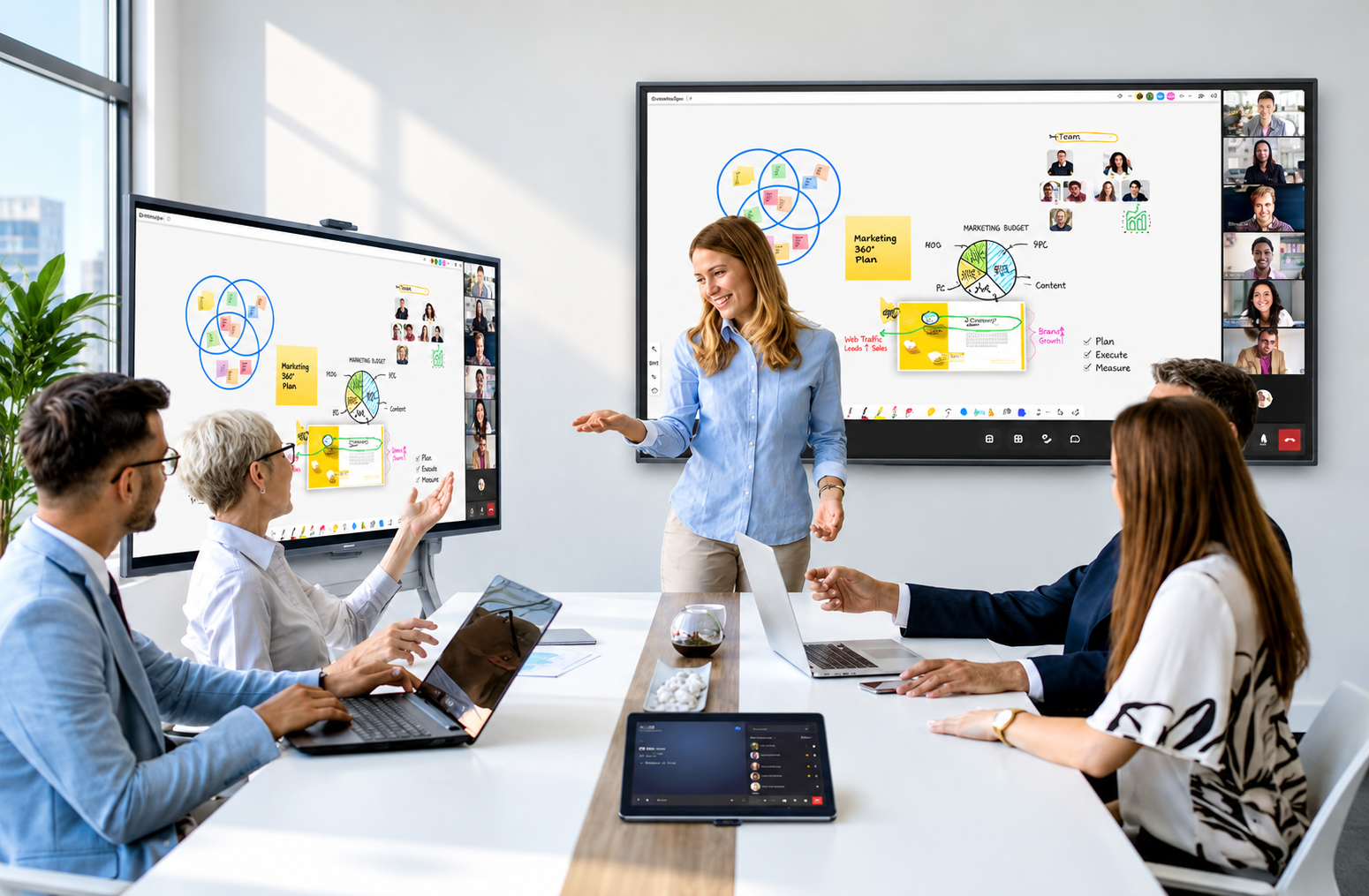
Every office eventually hits the same wall: the projector is dim, the old whiteboard is a scheduling headache, and meetings with remote colleagues feel disconnected. An interactive display solves all three at once, but only if you buy the right one for how your office actually works. This guide breaks down exactly what to evaluate before you sign a purchase order.
Not every interactive display is bought for the same reason, and the "best" one depends heavily on how the room gets used:
Clarifying this first prevents the most common mistake: buying a feature-heavy premium display for a room that only needed basic screen sharing.
Screen size should be driven by the farthest seat's viewing distance, not simply "biggest available."
|
|
|
|
|
|
|
|
|
|
|
|
|
|
|
|
|
|
|
|
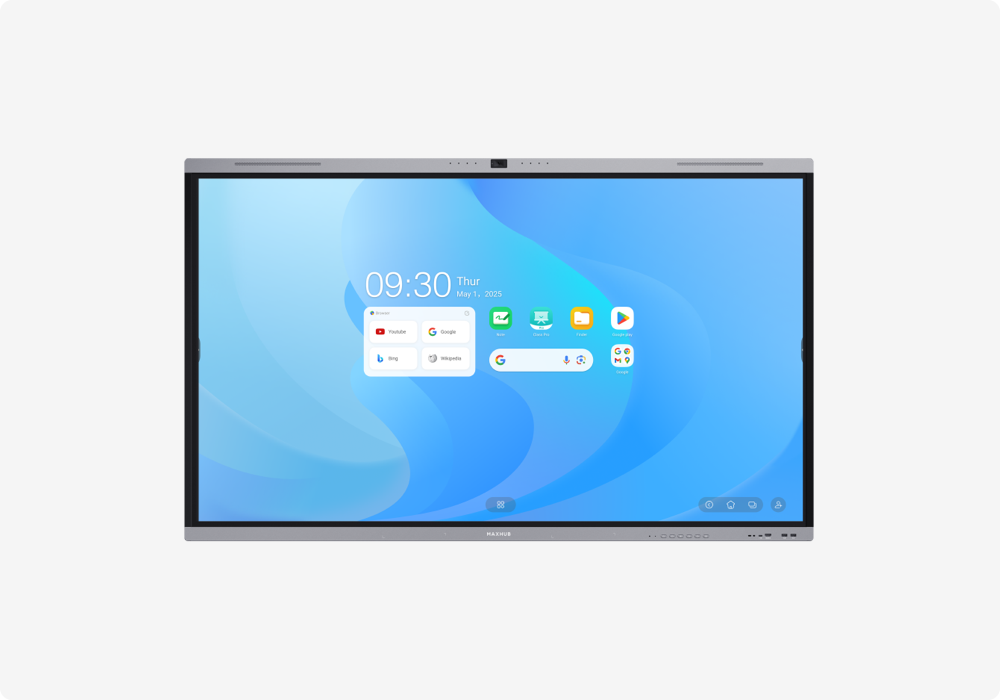
Options like the V7 Series and XBoard for MTR are corporate-series interactive flat panels built for office meeting rooms.
Look past the screen and evaluate what's actually running the device:
If the display will be used for video calls (and most office displays now are), treat this as equally important as the screen itself:
Before buying, check what your organization already runs meetings on:
The screen is only half the product. The software running on it determines daily usability:
The sticker price is never the full cost. Budget for:
A single display is simple to manage manually. Ten displays across three floors are not. If you're deploying at scale, plan for centralized management from the outset. A platform like MAXHUB Pivot+ lets IT push updates, monitor device health, and manage content remotely across every room instead of handling each one individually.
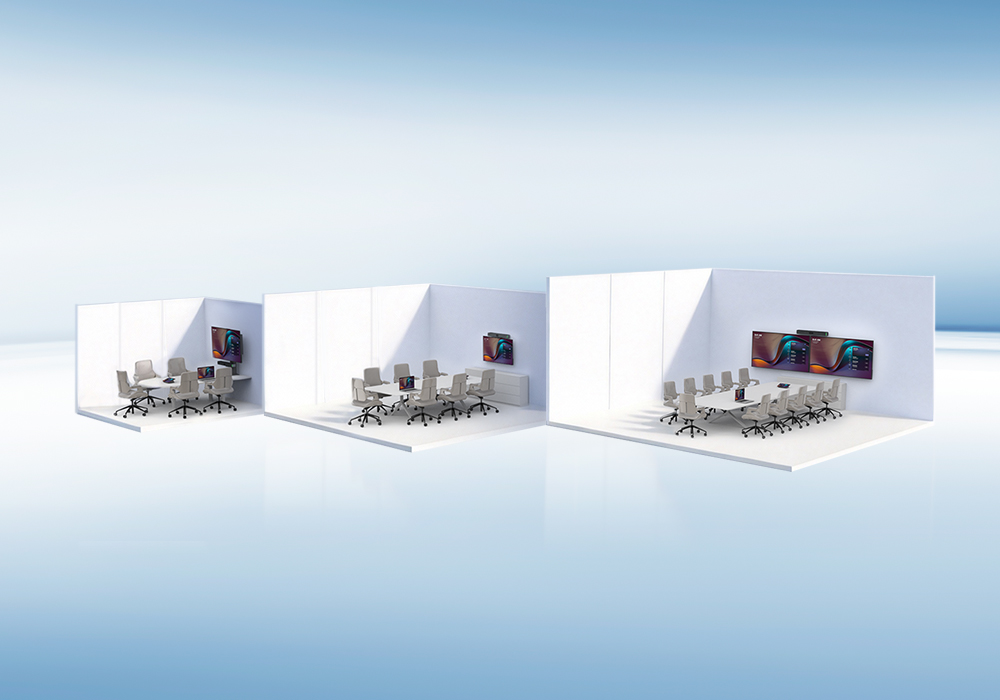
Rather than buying room-by-room on instinct, map your office against a structured framework like MAXHUB's Huddle, Small, Medium, and Large Conference Room solutions, or run your actual room dimensions through the Room Configurator to get a sized hardware recommendation before purchasing.
What should I consider when choosing an interactive display for an office?
Consider screen size, display resolution, touch technology, connectivity options, wireless screen sharing, built-in speakers and microphones, operating system, and compatibility with your existing meeting-room equipment.
What screen size is best for an office interactive display?
The ideal screen size depends on the meeting-room size and viewing distance. Larger rooms generally benefit from larger displays, while smaller meeting rooms may work well with more compact interactive displays.
Why is touch functionality important for office collaboration?
Touch functionality allows users to write, annotate, brainstorm, edit documents, and interact directly with content during meetings, making discussions more collaborative.
Should an office interactive display support wireless screen sharing?
Yes. Wireless screen sharing can make meetings more convenient by allowing participants to share content from laptops, tablets, or smartphones without relying entirely on cables.
Can an interactive display be used for video conferencing?
Yes. Many modern interactive displays can work with cameras, microphones, speakers, and video-conferencing platforms, making them suitable for both in-person and hybrid meetings.
What's the difference between an interactive display and a regular commercial TV?
An interactive display adds touch input, built-in annotation/whiteboarding software, and typically a camera and microphone array, turning it into a full collaboration tool rather than just a screen for showing content.
How many years does an office interactive display typically last?
Most business-grade panels are built for a multi-year lifecycle with regular firmware support, though actual lifespan depends on usage intensity and how well the touch panel and camera hardware are maintained.
Is IR touch or PCAP touch better for an office display?
IR (infrared) touch is reliable and cost-effective for most meeting rooms; PCAP (capacitive) touch offers a smoother, more precise feel closer to a tablet, which some organizations prefer for design or presentation-heavy work.
Not sure which display fits your office? Talk to MAXHUB's team or run your room dimensions through the Room Configurator for a tailored recommendation.

{$ text $}